Application tour
News Dashboard opens on Brief, a generated overview of the current news window. Use Today when you want to work through individual articles, and use the rest of the navigation for focused tasks.
Find your way around
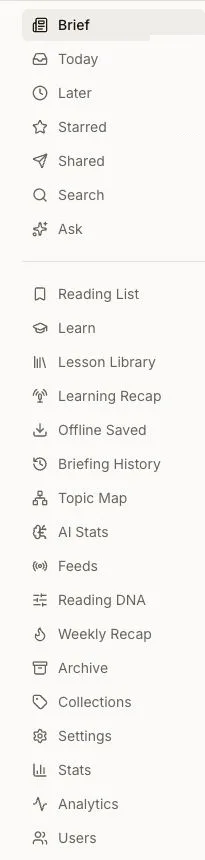
On a desktop-sized screen, the navigation rail stays beside the current page. On a smaller screen, the bottom bar keeps Brief, Today, Shared, Starred, and Search visible; open More for Later, Ask, sources, learning, settings, and the other destinations. The screenshot uses an administrator account: Stats, Analytics, and Users are administrator-only and do not appear in a reader's navigation.
Brief: understand the day
Brief is the home page. Its Current-Day Report summarizes articles discovered from your available sources during the current-day window, independently of whether you already triaged them. You can refresh the report, focus a generated report on a topic, open its history, or continue into the supporting articles.
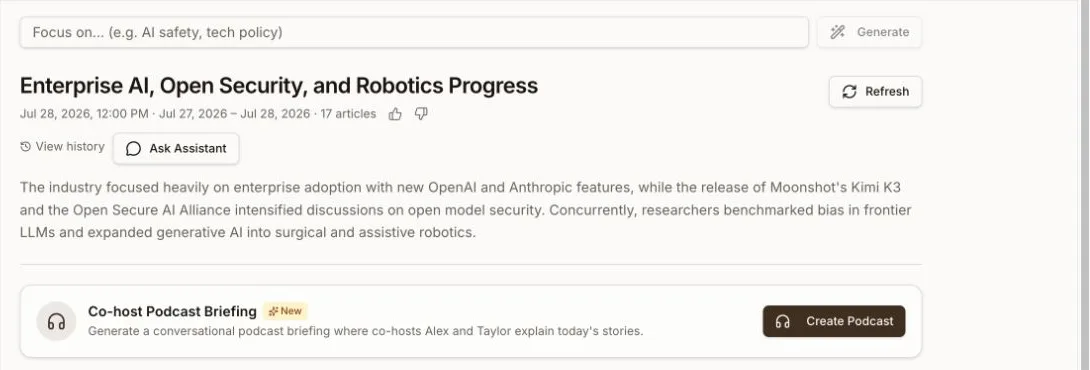
Brief generation and server-side podcast audio are optional capabilities controlled by the deployment operator. See Briefings for the report, delivery, and provider limits.
Today: decide what deserves attention
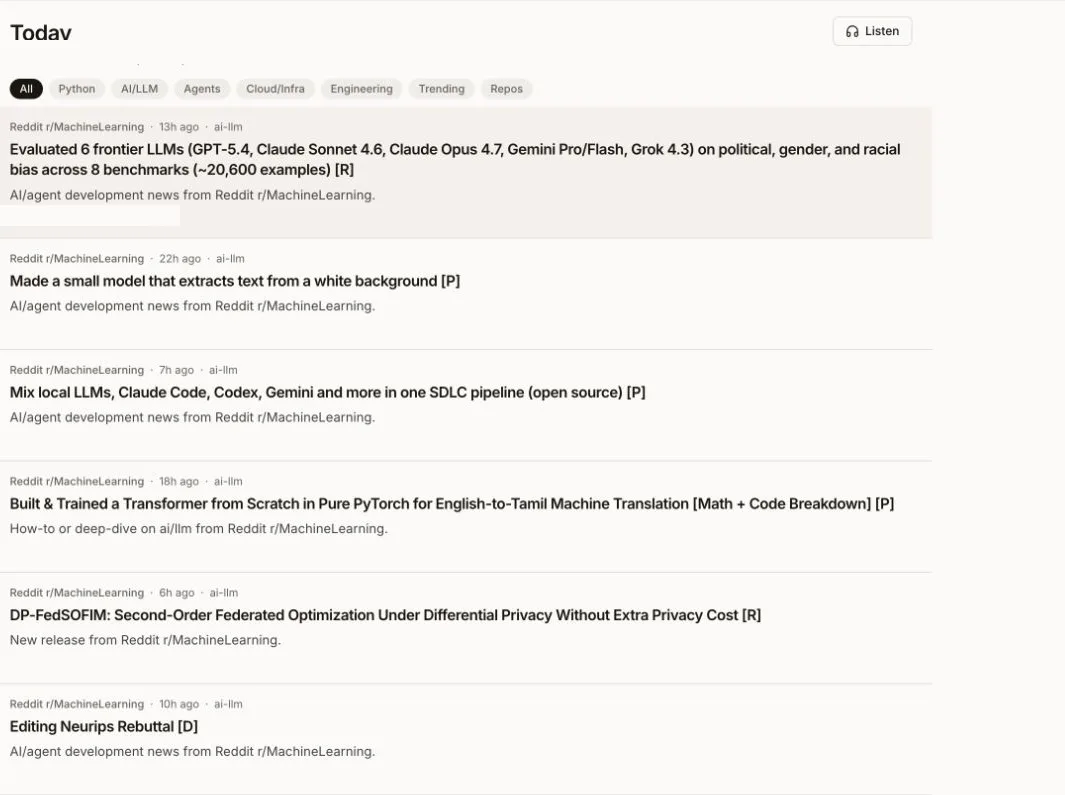
Today is the active article queue. Filter it by category, open a promising headline, or use the article actions to move an item to Done, Later, Skipped, Starred, Snoozed, or Archived.
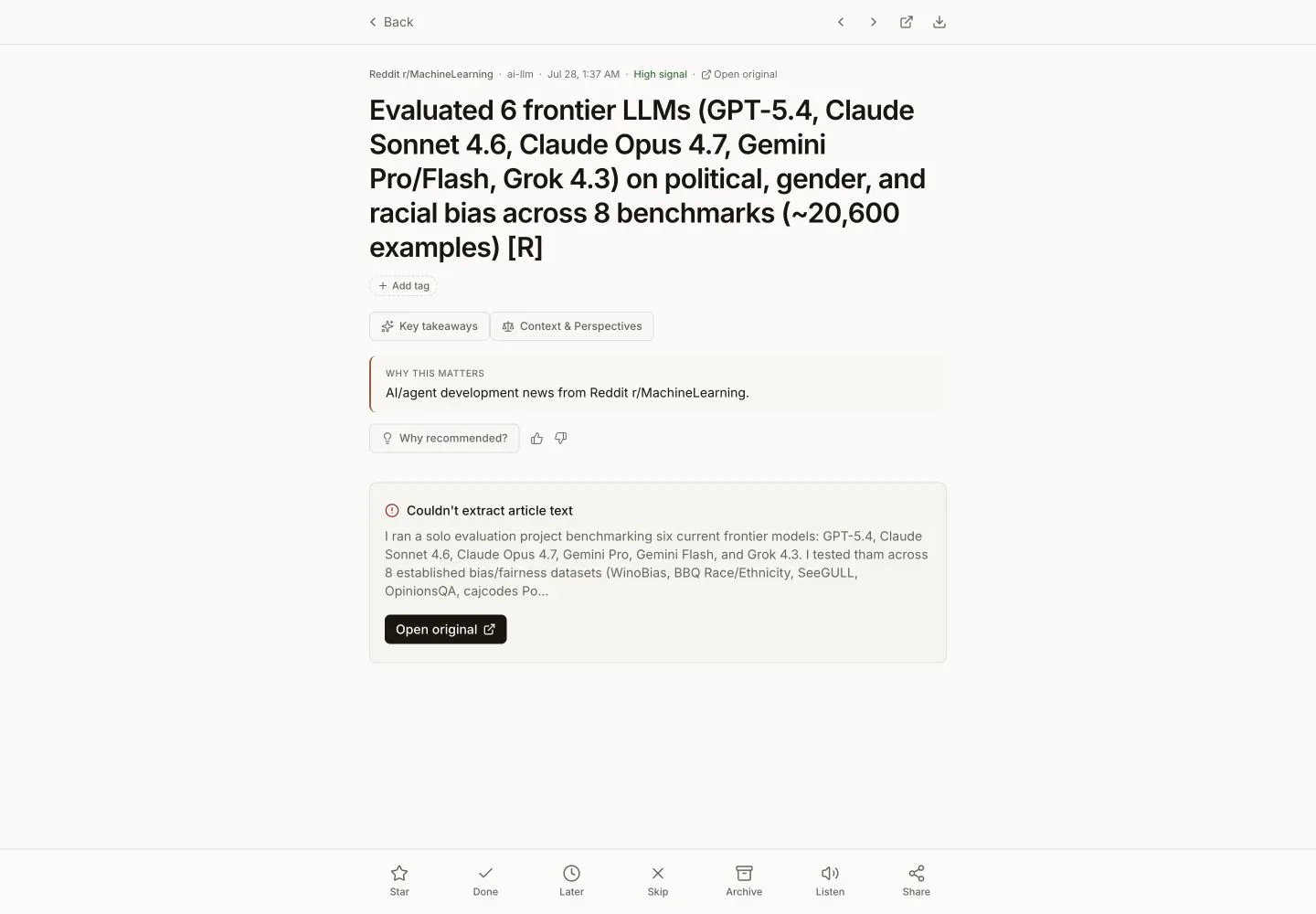
The screenshot below shows the article reader after opening an item from Today. Its bottom triage action bar provides Star, Done, Later, Skip, and Archive.
Use Today Feed and triage for the state meanings and keyboard shortcuts.
Read an article
Opening a headline enters the article reader. From there you can:
- read the extracted body or open the original site;
- move to the previous or next article from the list you opened;
- mark the article Done, Later, Skipped, Starred, or Archived;
- add highlights and collections, share with another user on the same instance, or explicitly save the article body for offline reading; and
- use optional AI insights, perspectives, and recommendation explanations when the instance has the required provider configuration.
See Sharing articles for the same-instance sharing boundary and Saved and read history for the state recorded by these actions.
Search: return to anything
Search queries the article corpus available to your account, including items outside Today. Use it for a keyword, topic, or phrase, then open a result in the same article reader. On desktop, open the command palette with Command+K or Ctrl+K to navigate to Search without leaving the keyboard.
See Search for indexed fields, workflow-state coverage, and the optional full-body index.
More: open a focused workspace
The remaining destinations separate different jobs:
- Feeds manages the sources available to your account. Administrator-only schedule, run, and log pages appear inside Feeds for administrators.
- Later, Starred, Reading List, Collections, and Offline Saved organize material for another time.
- Ask, Topic Map, and AI Stats explore the corpus with optional AI and graph capabilities.
- Learn, Lesson Library, and the recap pages turn reading activity into study and review.
- Settings controls your interface, personalization, delivery, privacy, and account data.
Continue with Sources and subscriptions to choose what enters the app, or Organize and learn to build a longer-term workflow.